
Shortcuts
Tool shortcuts can be changed in the Shortcuts tab of Settings. Click a key button and press the new key to rebind it, or press Esc to cancel. Changes apply to every project.
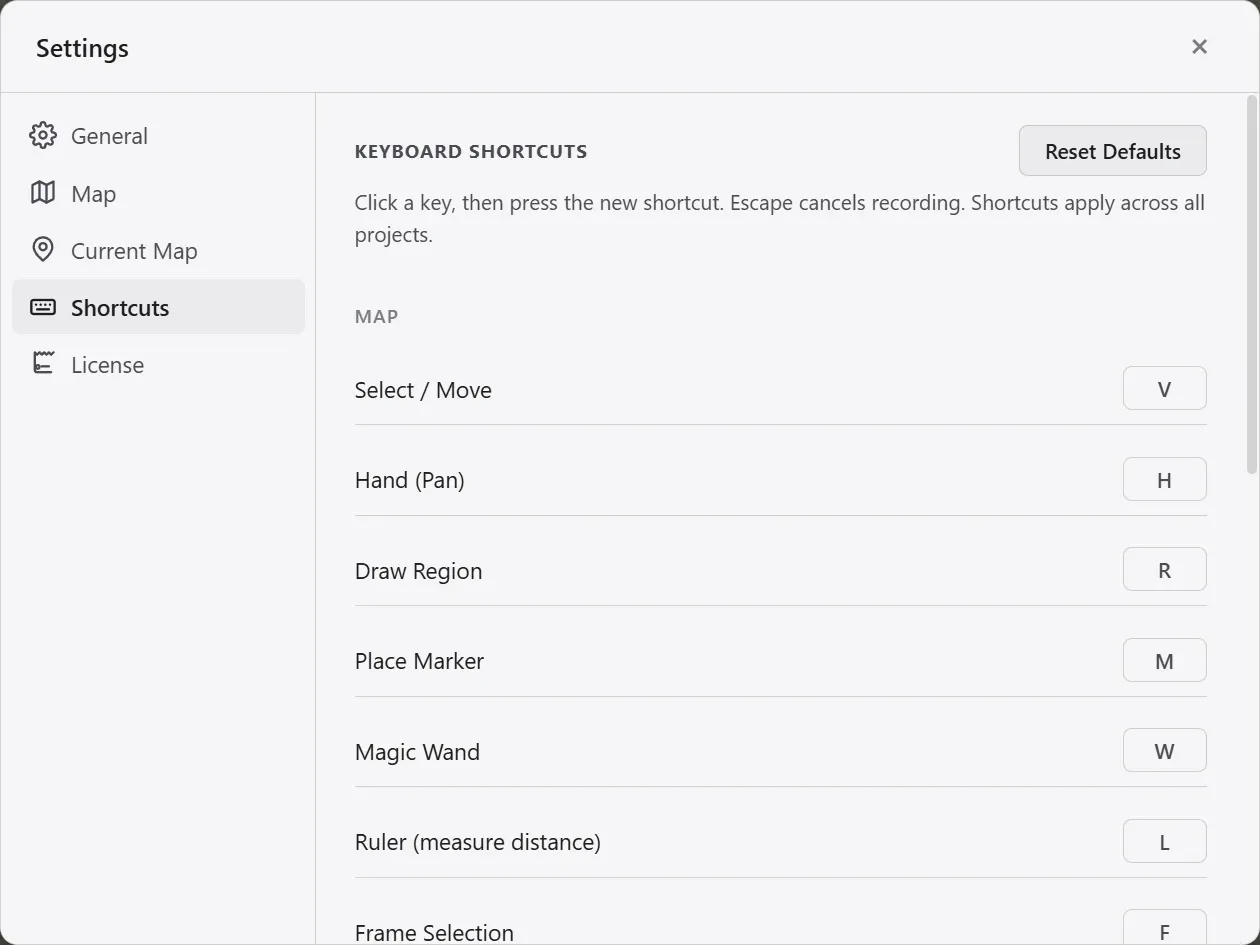
The list is grouped by where each key works. The Map group covers the tools on the map screen, and the Background Editor group covers keys that work only inside background edit mode. The two groups are never active at the same time, so they cannot shadow each other.
| Group | Tool | Default key |
|---|---|---|
| Map | Select / Move | V |
| Map | Hand (Pan) | H |
| Map | Draw Region | R |
| Map | Place Marker | M |
| Map | Magic Wand | W |
| Map | Ruler | L |
| Map | Frame Selection | F |
| Map | Brush Smaller / Larger | [ / ] |
| Background Editor | Terrain Brush | T |
| Background Editor | Stamp Brush | S |
| Background Editor | Image Library | I |
| Background Editor | Coastline Deform | C |
| Background Editor | Move/Scale Terrain | G |
| Background Editor | Edit heights | E |
| Background Editor | Draw Road | P |
| Background Editor | Text | B |
Select and Hand keep the same V and H inside background edit mode. The [ and ] brush-size keys work while you are painting with a brush.
Reset Defaults puts every key back to the values in the table above.
When an app update adds a tool whose default key you have already bound to something else yourself, the new tool arrives unbound. Give it a key of your choosing in this tab.