
A tour of the layout
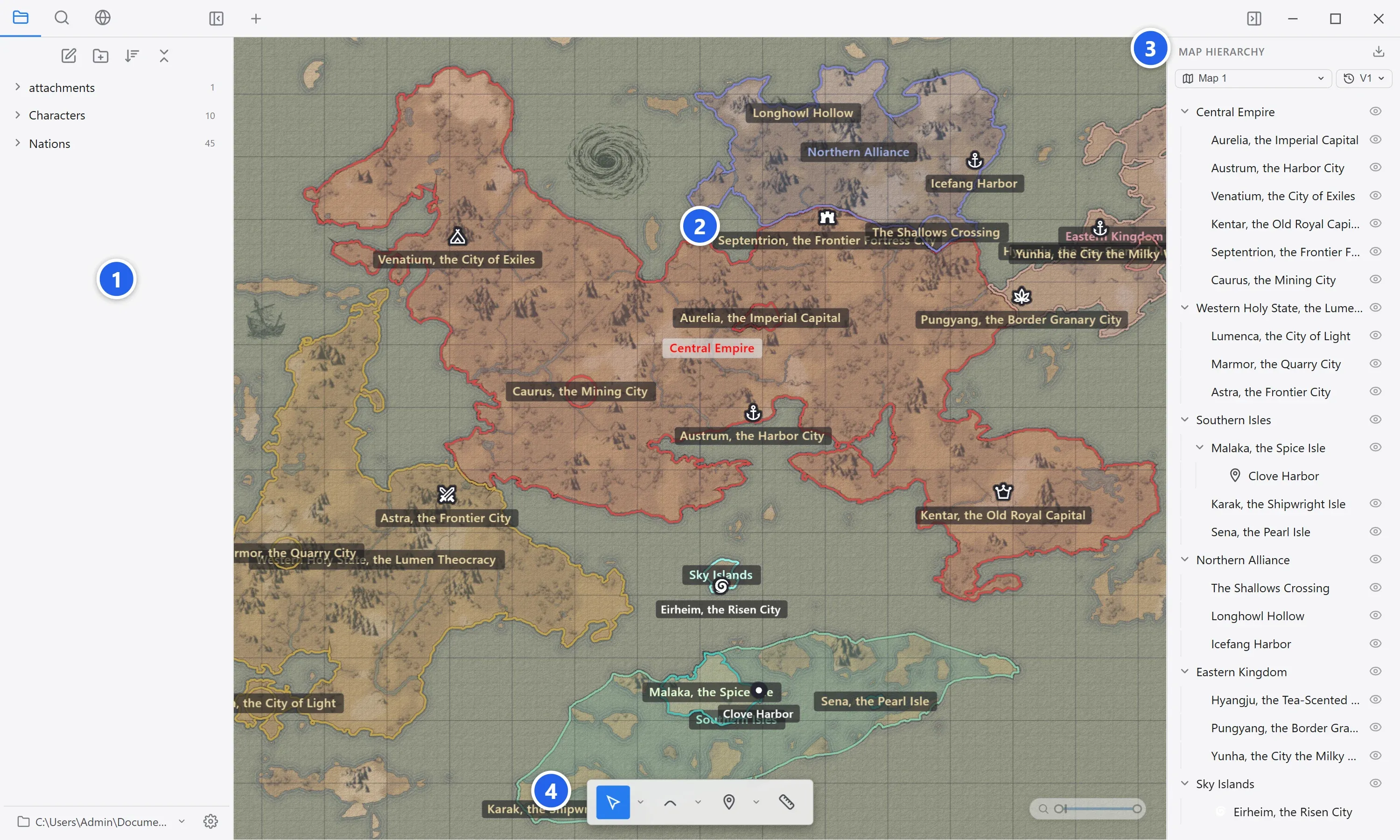
The World Note window is divided into four areas.
-
The left panel shows the file hierarchy, full-text search, or the background visual settings.
-
The map canvas shows the map. Everything you do on the map happens here.
-
The right panel shows the map hierarchy.
-
The bottom toolbar is where you pick the tool to work with.
Left panel
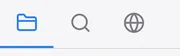
Section titled “Left panel”The tabs at the top left switch what the left panel shows. From left to right: Files, Search, and Background edit.
| Tab | Description |
|---|---|
| Files | Shows the project’s documents and folders as a hierarchy. The buttons at the top create a document or folder, sort, and collapse all. |
| Search | Full-text search across every note in the project. Covered in Search your notes. |
| Background edit | Enters Background edit mode, where you draw the map’s visual side. Covered in Background edit mode. |
The bottom of the panel shows the current project path and the settings button.
Map canvas
Section titled “Map canvas”The tabs for your open documents sit along the top. The map is shown below them. An open document can sit next to the map or float above it. The arrangement is covered in View modes and docking.
The undo and redo buttons sit at the bottom right, doing the same thing as Ctrl+Z and Ctrl+Y. The range you can zoom to with the wheel is set in the Current Map tab of Settings.
Right panel
Section titled “Right panel”The map hierarchy appears here. Depending on the mode (document view or Background edit), it can show different content. Covered in The map hierarchy panel.
| Element | Description |
|---|---|
| Switch map | Switches between the project’s maps when there is more than one. |
| Manage versions | Switches the current map’s version. |
| Export | Exports the map as a PNG or JPEG image. |
| Hierarchy list | Shows regions and markers as a hierarchy. Click to select, and toggle visibility with the eye icon. |
Bottom toolbar
Section titled “Bottom toolbar”Click a tool to select it: select and hand, region drawing (freehand, add, subtract) with the magic wand, marker placement, and the ruler. Each tool and its shortcut is covered in Tools and shortcuts.